WhatsApp Messenger
WhatsApp LLC
Oct 18, 2010
Jan 18, 2026
Varies with device
Varies with device
10,000,000,000+

What's new
• You can now add a custom Member Tag to let everyone know your role in the group chat. Open the group chat, tap the group name and scroll to the members list. Tap Add member tag and type in your role to show people who you are or how you’re known in this group.
These features will roll out over the coming weeks. Thanks for using WhatsApp!
Images



Description
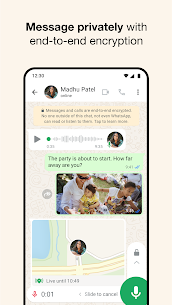
WhatsApp is a free, secure messaging app used by over 2 billion people worldwide. It allows you to send text messages, make voice and video calls, and share photos or documents using your phone’s internet connection (Wi-Fi or mobile data) instead of your cellular plan’s SMS minutes.
How to Get Started
1. Download and Install
For Android: Open the Google Play Store and search for “WhatsApp.”
For iPhone: Open the App Store and search for “WhatsApp Messenger.”
Tap Install or Get.
2. Set Up Your Account
Verify your number: Open the app, agree to the terms, and enter your mobile phone number. You will receive a 6-digit verification code via SMS; enter this code into the app.
Create your profile: Enter your name and add an optional profile picture.
Sync contacts: Grant WhatsApp permission to access your contacts. It will automatically show you which of your friends already use the app.
Basic Features: How to Use It
📧 Sending Messages
Start a Chat: Tap the New Chat icon (a speech bubble on Android or a square with a pencil on iPhone).
Select a Contact: Tap a name to open a chat window.
Type and Send: Type your message and hit the Send arrow.
Media: Tap the + or Paperclip icon to send photos, videos, documents, or your location.
📞 Making Calls
Tap the Phone icon for a voice call or the Video Camera icon for a video call.
Note: These calls are free over Wi-Fi, but they use data if you are on a mobile network.
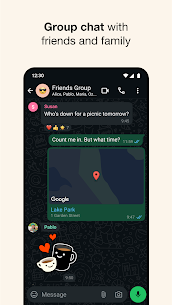
👥 Group Chats
Tap New Chat > New Group.
Select the friends you want to add and give the group a name. This is perfect for family chats or organizing events.
🕒 Status Updates
Much like “Stories” on other platforms, you can share photos or text that disappear after 24 hours. Tap the Status or Updates tab to post one or view your friends’ updates.
Helpful Tips for Beginners
Checkmarks: One gray tick means “Sent,” two gray ticks mean “Delivered,” and two blue ticks mean the recipient has “Read” it.
Voice Notes: If you don’t want to type, hold down the Microphone icon to record a voice message and release it to send.
WhatsApp Web: You can also use WhatsApp on your computer by visiting [suspicious link removed] and scanning the QR code with your phone.
Would you like me to walk you through how to set up “WhatsApp Web” so you can message from your computer?
Related apps





Developer's apps

Most rated apps
Most rated apps


