Multiling O Keyboard + emoji
Honso
Mar 12, 2013
Feb 1, 2025
2.0.1
5.0
5,000,000+

What's new
Patch
Fixed some broken website issues
Targeted Android 14 as requested by Play Store
Images


Description
Multiling O Keyboard (also known as Multiling O Keyboard) is a super-lightweight, highly customizable keyboard app for Android. It is famous for being incredibly small (less than 1 MB) while supporting over 200 languages and offering deep “DIY” customization options that most modern keyboards (like Gboard or SwiftKey) don’t allow.
The “O” in the name stands for Omni, reflecting its goal to support every language and layout imaginable.
Key Features
Ultra-Lightweight: It uses almost no system memory or battery.
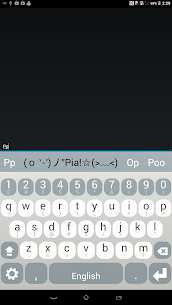
Language Support: Supports over 200 languages, including many rare scripts and dialects.
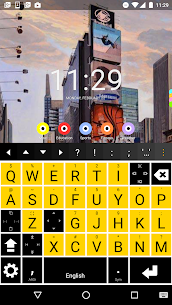
DIY Layouts: You can literally design your own keyboard layout (moving keys, changing sizes, or creating a 5-row PC-style layout).
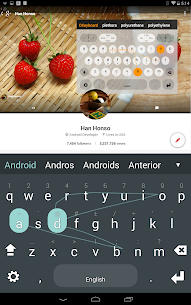
Gestures: It is heavily gesture-oriented. You can swipe from keys to input symbols, numbers, or even full sentences.
Privacy: It does not require internet permission, meaning your keystrokes stay on your device.
How to Use & Set Up
Because it is so flexible, the initial setup can feel a bit more technical than other apps. Here is the standard workflow:
1. Basic Activation
Download & Install: Get it from the Google Play Store.
Enable Keyboard: Open the app and follow the prompts to “Enable Multiling O Keyboard” in your phone’s Language & Input settings.
Select Keyboard: Set it as your default input method.
2. Adding Languages
To add a language (e.g., Spanish, Hindi, Arabic):
Long-press the Spacebar and slide your finger to the “Languages” option.
Note: For some languages, you may be prompted to download a small “plugin” or dictionary from the Play Store to enable word prediction.
3. Customizing the Layout (The “DIY” Part)
This is where the app shines. To change the look or feel:
Resize: Long-press the Settings (gear) icon or the Spacebar and drag to “Layout” to choose between QWERTY, DVORAK, or split-screen modes.
Themes: Go to Settings > Theme. You can choose preset colors or create your own by mixing RGB values.
Advanced DIY: If you are a power user, you can paste “Layout Codes” (found on forums like Reddit or GitHub) into the DIY+ section to get unique layouts like a “Messagease” style or a math-specific keyboard.
4. Using Gestures
Swipe up/down/left/right on specific keys to access the symbols shown in the corners of that key.
Slide from the Spacebar to quickly switch between languages or access the emoji panel.
Is it right for you?
Use it if: You have an older phone with low RAM, you need to type in a rare language, or you love “tinkering” with your settings to get a perfect layout.
Skip it if: You want a keyboard that “just works” out of the box with high-end AI prediction and fancy stickers without any setup.


Most rated apps
Most rated apps


