Logo Maker Plus – Logo Creator
Nov 15, 2016
Jun 7, 2025
Varies with device
Varies with device
10,000,000+
What's new
Fixed the navbar overlapping issue.
Images
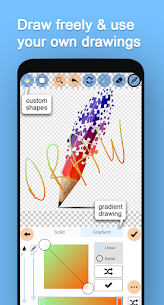
Description
Logo Maker Plus (often referred to as Logopit Plus) is a versatile graphic design app available for Android and iOS. While its name highlights logo creation, it is a comprehensive design tool used for social media covers, banners, posters, and YouTube thumbnails.
It is particularly popular because it allows users to create professional-grade designs from scratch on a mobile device without needing complex software like Adobe Illustrator.
Key Features
Massive Library: Thousands of free icons, symbols, and monograms categorized by industry.
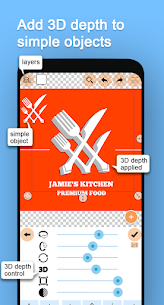
3D Editing: One of the few mobile apps that allows you to add real 3D depth to both text and icons.
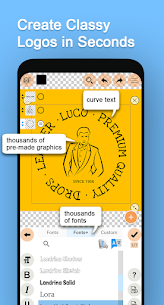
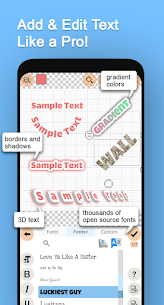
Advanced Typography: Access to over 700 font families with support for multiple languages (Latin, Arabic, Greek, etc.).
Customization: You can change colors, apply gradients, use textures (like gold or wood), and add shadows or borders.
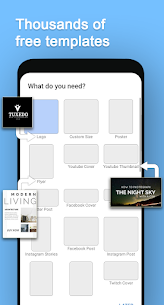
Multi-Purpose: Pre-set sizes for Facebook covers, Twitter headers, Instagram posts, and more.
How to Use Logo Maker Plus (Step-by-Step)
1. Choose Your Canvas
When you open the app, you will be asked what you want to create. You can choose a custom size or pick a template for a Logo, Facebook Cover, YouTube Thumbnail, etc.
2. Add an Icon or Graphic
Tap the Add Icon (plus) button.
Browse categories (e.g., Business, Food, Sports) or search for a specific symbol.
Once selected, you can resize it by dragging the corners or rotate it using the on-screen tools.
3. Customize the Visuals
After selecting your icon, a settings menu will appear. You can:
Color/Gradient: Choose solid colors or create your own multi-color gradients.
Texture: Apply a “material” look (like metallic or marble) by selecting the texture tool.
3D Effect: Tap the 3D icon to tilt and add depth to the graphic.
4. Add and Style Text
Tap the “A+” icon to add your business name or slogan.
Select a font that matches your brand’s “vibe.”
Use the Curved Text tool if you want your words to wrap around a circular icon.
5. Import Your Own Images (Optional)
If you have a specific photo or a pre-existing drawing, you can import it from your gallery and use the app’s Background Remover or blending tools to integrate it into your design.
6. Save and Export
Once satisfied, tap the Save icon in the top right.
Save Draft: Keeps the project editable for later.
Download PNG/JPG: Downloads the final image to your phone. (Choose PNG if you need a transparent background for your website or business cards).
Related apps

Most rated apps
Most rated apps


