iLovePDF: PDF Editor & Scanner
iLovePDF
Nov 23, 2017
Dec 15, 2025
3.12.0
8.0
10,000,000+
What's new
This update adds two useful features along with behind-the-scenes improvements:
• Split by file size: Enter the size you need, and we’ll split your PDF into smaller files that stay within that limit. Perfect for meeting strict upload requirements.
• Improved Excel conversion: You can now export PDF tables into a single editable sheet, making it easier to extract and analyze your data.
• Bug fixes: We've resolved several issues to improve general stability and reliability.
Images
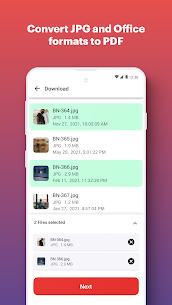
Description
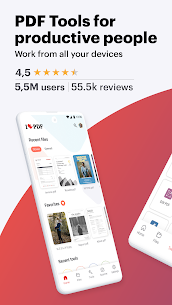
iLovePDF is a popular all-in-one document management suite designed to make working with PDF files simple and efficient.1 It is available as a website, a mobile app (iOS/Android), and a desktop application (Windows/Mac).2Essentially, it’s a “Swiss Army knife” for PDFs,
allowing you to bypass expensive software like Adobe Acrobat for most daily tasks. Core Features The app is divided into several “tools” that handle specific tasks:3Convert: Change PDFs to Word, Excel, PowerPoint, or JPG (and vice versa).4Organize: Merge multiple PDFs into one, split a single PDF into several files, or remove/reorder specific
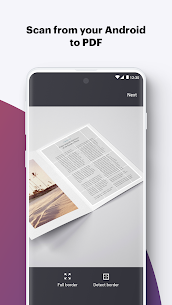
draw.8Security: Add passwords to protect files or remove passwords from protected PDFs.9Sign: Electronically sign documents or request signatures from others.10Scanner (Mobile Only):11 Use your phone’s camera to “scan” physical documents directly into PDF format.12How to Use the iLove PDF App The interface is designed to be intuitive,
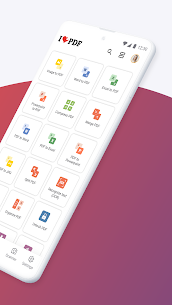
using a “tool-first” approach.131. Select Your Tool Open the app or website.14 You will see a grid of icons (e.g., “Merge PDF,” “PDF to Word”).15 Tap the one you need for your current task.2. Upload Your Files16From Device: Tap the “Select file” button to browse your internal storage or gallery. From Cloud:
You can link your Google Drive or Dropbox to pull files directly
Adjust Settings Once the file is uploaded, a “Settings” sidebar or menu will appear. For Compression: Choose between “Extreme,” “Recommended,” or “Low” compression. For Merging: Drag the file thumbnails to change the order in which they will appear.18For Converting: Select the output format (e.g., .docx or .jpg).194.
Process and Download Click the big action button at the bottom (e.g., “Compress PDF”).20 Once the processing is finished (usually takes a few seconds), the app will provide a download link or automatically save the file to your “Processed” folder Which Version Should You Use?Version Best For…Web Quick,
one-off tasks without installing anything .Mobile physical papers, signing documents on the go, and quick edits. Desk top Heavy-duty tasks, offline processing, and privacy (files stay on your computer).


Most rated apps
Most rated apps


