ColorNote Notepad Notes
What's new
** The best way to report bugs of the update is to send an email.
4.7.8
AI writing assistant & grammar checker in the premium version
4.7.7
Highlight colors, Hyperlink
4.6.5
Premium features added
4.6.2
If the 1x1 widget is not displayed properly, enable widget comptibility mode.
- Settings - Widget - Enable Comptibility mode.
Images


Description
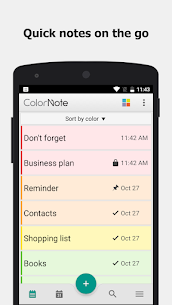
ColorNote is a lightweight, easy-to-use notepad application primarily designed for Android. It has been a staple in the productivity category for over a decade because it mimics the simplicity of physical “sticky notes” while adding digital benefits like reminders, cloud syncing, and password protection.
Core Features
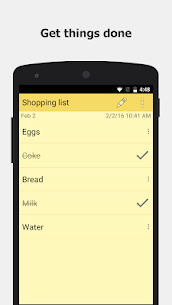
Two Formats: Choose between a Text note (lined-paper style for long-form writing) or a Checklist (for shopping or to-do lists).
Color-Coding: Organize your life by assigning colors to notes (e.g., Work = Blue, Personal = Yellow, Urgent = Red).
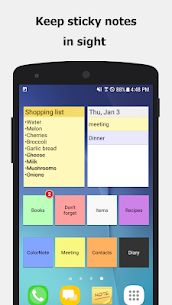
Sticky Note Widgets: You can pin individual notes directly to your phone’s home screen as a widget.
Calendar Integration: View your notes and reminders in a calendar view to manage your schedule.
Security: Lock individual notes or the entire app with a master password.
Cloud Sync: Sync your notes across devices (phone and tablet) using a Google or Facebook account.
How to Use ColorNote
1. Creating Your First Note
Select Text (for general notes) or Checklist (for tasks).
To Save: Simply press the Back button on your phone. ColorNote auto-saves everything you type.
2. Using Checklists
In a Checklist note, tap “Add Item” to list your tasks.
To cross something off, just tap the item. A line will appear through it (strikethrough).
If you want to uncheck all items at once, tap the menu icon (three dots) and select “Uncheck all.”
3. Organizing with Colors
While editing a note, tap the colored square icon in the top-right corner.
Choose a color to categorize the note.
On the main screen, you can filter your view by color to see only specific categories.
4. Setting Reminders
Open an existing note.
Tap the Reminder icon (clock/bell) or find it in the menu.
Select from:
Time Alarm: Rings like an alarm at a specific time.
All Day: Stays in your notification bar as a subtle reminder.
Pin to Status Bar: Keeps the note visible in your phone’s top pull-down menu.
5. Adding a Home Screen Widget
Go to your phone’s home screen.
Long-press on an empty space and select Widgets.
The app will ask which note you want to display—select your desired note.
Availability
Android: Fully featured and most popular on the Google Play Store.
iOS/iPhone: While there are apps with similar names on the App Store, the official “Social & Mobile” version is primarily an Android app. Users moving to iPhone often use alternatives like Google Keep or Microsoft OneNote.
PC: There is no official Windows/Mac app, but you can access your notes via the web or by using an Android emulator like BlueStacks.


Most rated apps
Most rated apps


